
Getting started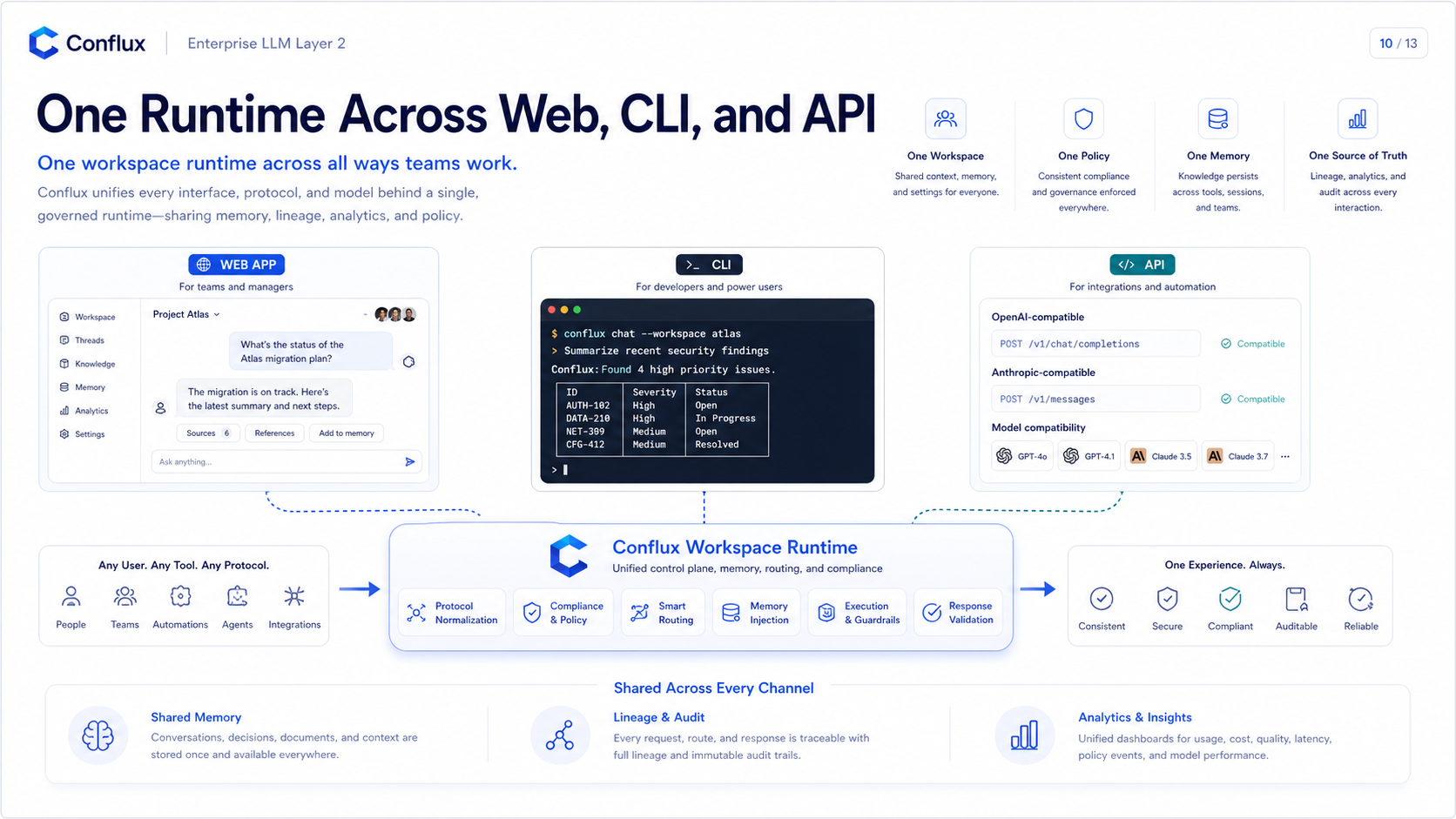 Click to enlarge
Quickstart
Start with the web workspace, connect CLI tools, or send API requests through Conflux.
Click to enlargeChoose an entry point
Start from the web
- Sign in and open Conflux.
- Create or select a workspace.
- Choose Direct, Flux, or Auto mode.
- Choose source models and a Flux model when needed.
- Send a prompt and review the run, route, model responses, and analytics.
Connect a CLI
Claude CLI can point at Conflux using an Anthropic-compatible base URL.
Windows PowerShell:
$env:ANTHROPIC_BASE_URL="https://api.yoiyoi.xyz"
$env:ANTHROPIC_API_KEY="<CONFLUX_API_KEY>"
Remove-Item Env:ANTHROPIC_AUTH_TOKEN -ErrorAction SilentlyContinue
claude --dangerously-skip-permissions
macOS/Linux:
export ANTHROPIC_BASE_URL="https://api.yoiyoi.xyz"
export ANTHROPIC_API_KEY="<CONFLUX_API_KEY>"
unset ANTHROPIC_AUTH_TOKEN
claude --dangerously-skip-permissions
Codex CLI also needs a provider entry in `config.toml`. Use a model ID returned by /v1/models for your Conflux API key.
model = "<MODEL_ID_FROM_V1_MODELS>"
model_provider = "yoiyoi"

[model_providers.yoiyoi]
name = "yoiyoi"
base_url = "https://api.yoiyoi.xyz/v1"
env_key = "CONFLUX_API_KEY"
Then set the API key for your shell.
Windows PowerShell:
$env:CONFLUX_API_KEY="<CONFLUX_API_KEY>"
codex
macOS/Linux:
export CONFLUX_API_KEY="<CONFLUX_API_KEY>"
codex